Small requests, shared results
Automatic small pages build a complete list. Compact caches are reused and kept current through watches.
THE DESKTOP WORKSPACE FOR YOUR INFRASTRUCTURE
A desktop app for developers and DevOps. Investigate Kubernetes resources, follow Docker logs and manage Helm releases in one workspace.No kubectl or Helm CLI requiredConnect directly to the Kubernetes API. Helm is built in.
Ocular loads the resource type and namespaces you choose. It avoids collecting every resource and full description in the background.
Automatic small pages build a complete list. Compact caches are reused and kept current through watches.
Request concurrency, request rates and idle cache retention are limited. Large All Namespaces reads ask you to choose namespaces instead of silently showing a partial list.
Refresh explicitly, follow elapsed time and received data, or cancel a list request. The cluster graph loads only when you ask.
A complete list of 10,000 Pods, with local search and sorting. Small requests, a shared cache and explicit loading keep the work under your control.
Measured with SPK Ocular 1.7.0 on Linux in browser mode. Sampled peak total PSS of the app and Chromium across 6 sessions, including object details.
Per connection: 10 read requests/s with a burst of 20, and at most 4 finite responses in flight.
Measured with SPK Ocular 1.7.0 on a local Kubernetes HTTP test fixture. Initial loading is the median of 3 fresh application sessions; 100 pages of 100 Pods form the complete list.
Linux browser mode with a dedicated headless Chromium. PSS includes the app and Chromium process trees; the HTTP fixture and measurement tool are excluded. The sampled peak across 6 valid sessions was 558 MiB.
Memory was sampled approximately every 0.5 seconds.
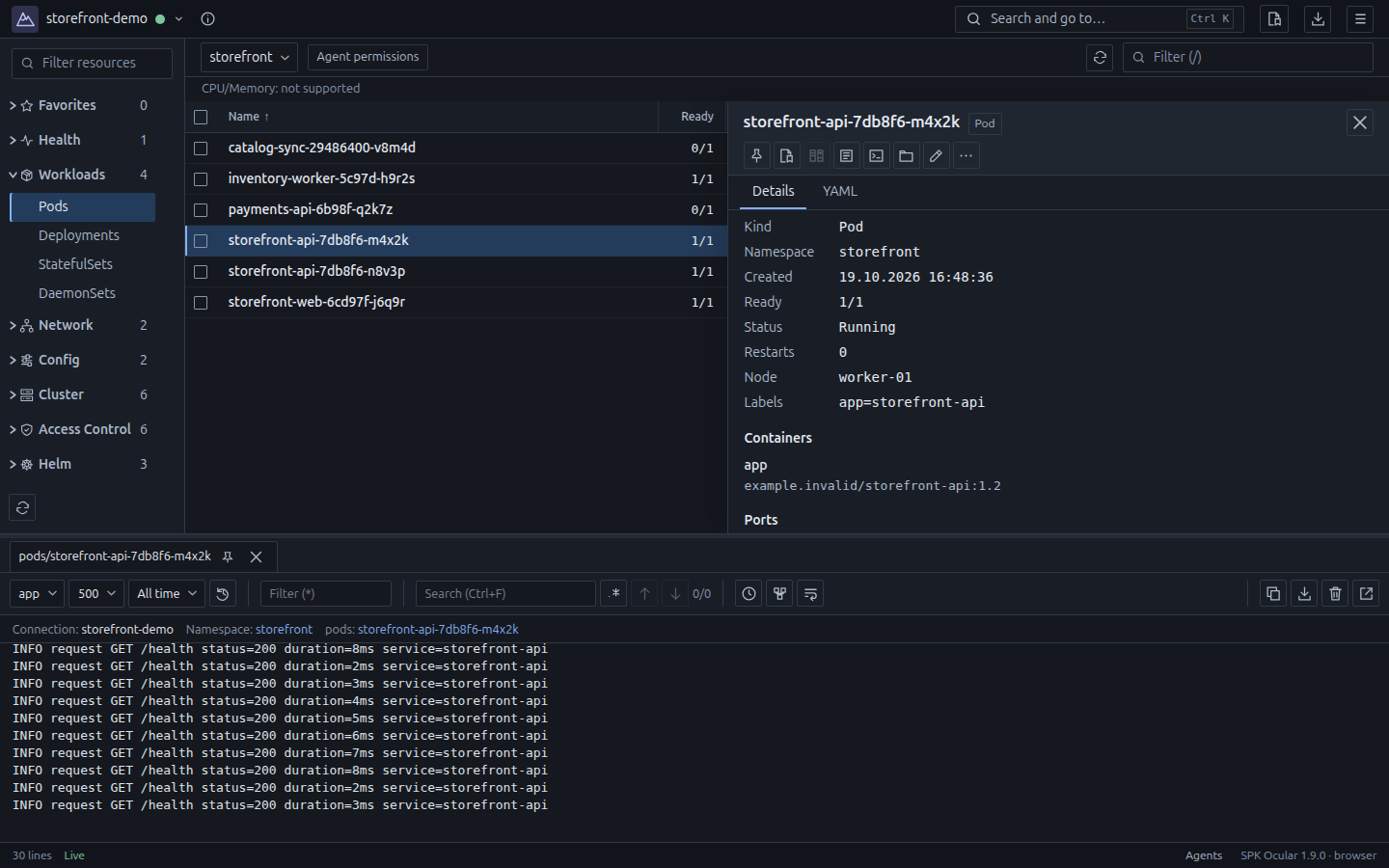
The details you need to investigate and act, without piecing together a dozen separate windows.
01 / INVESTIGATE
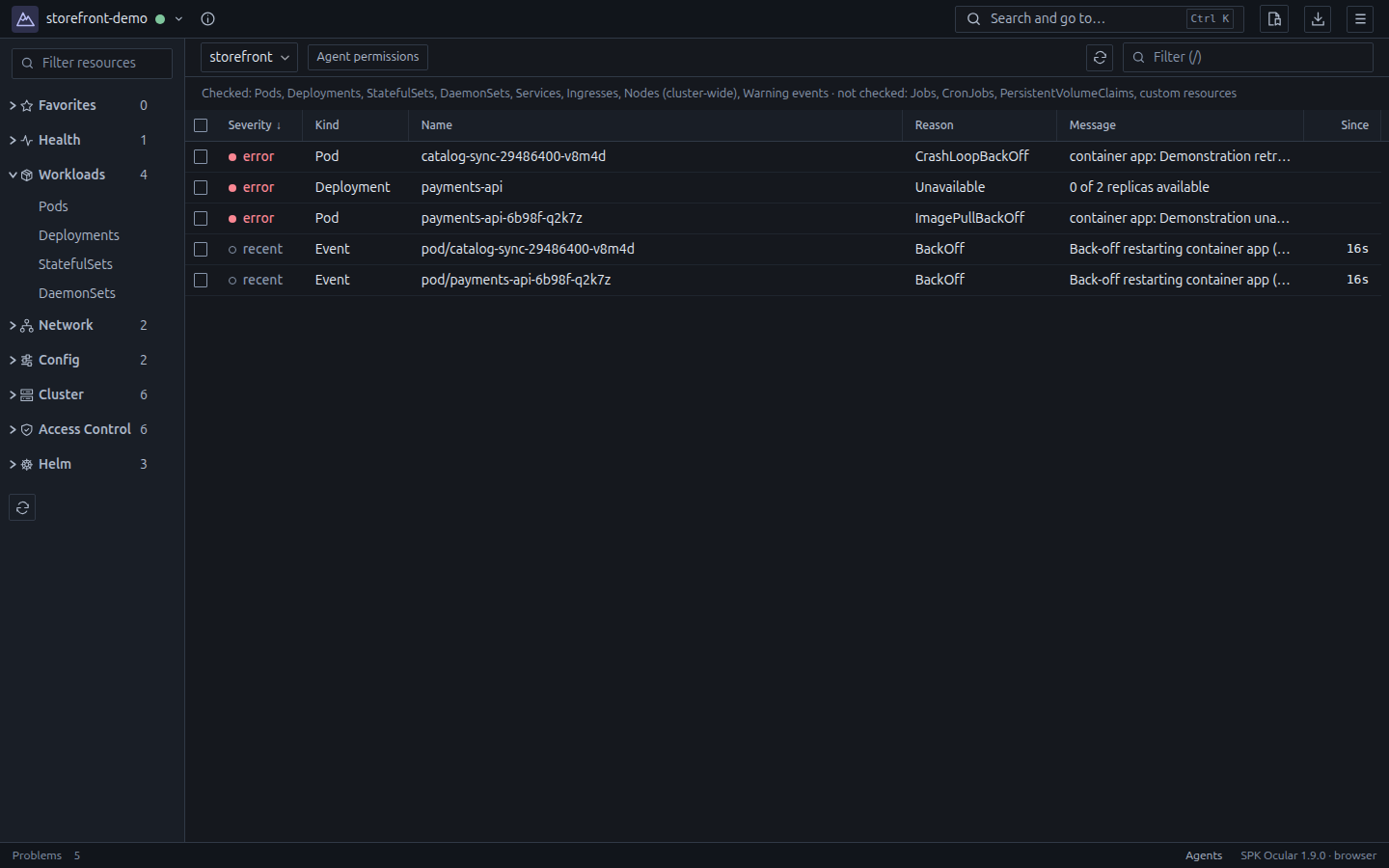
Spot unhealthy resources, open related objects and inspect their configuration. See when permissions or connection errors prevent a complete picture.
02 / TROUBLESHOOT
Matching lines appear while a bounded history scan continues; new live lines arrive alongside it. Search works within the filtered result. Open a terminal or forward a service port to investigate further.
Download retained source log history independently of viewer filters or line limits. Downloads opens automatically with progress and cancellation; click a completed row to open the file. Right-click the log download button to choose a location. Retention, export limits and incomplete reads remain explicit. Copy uses the filtered viewer buffer.
03 / SHIP & RECOVER
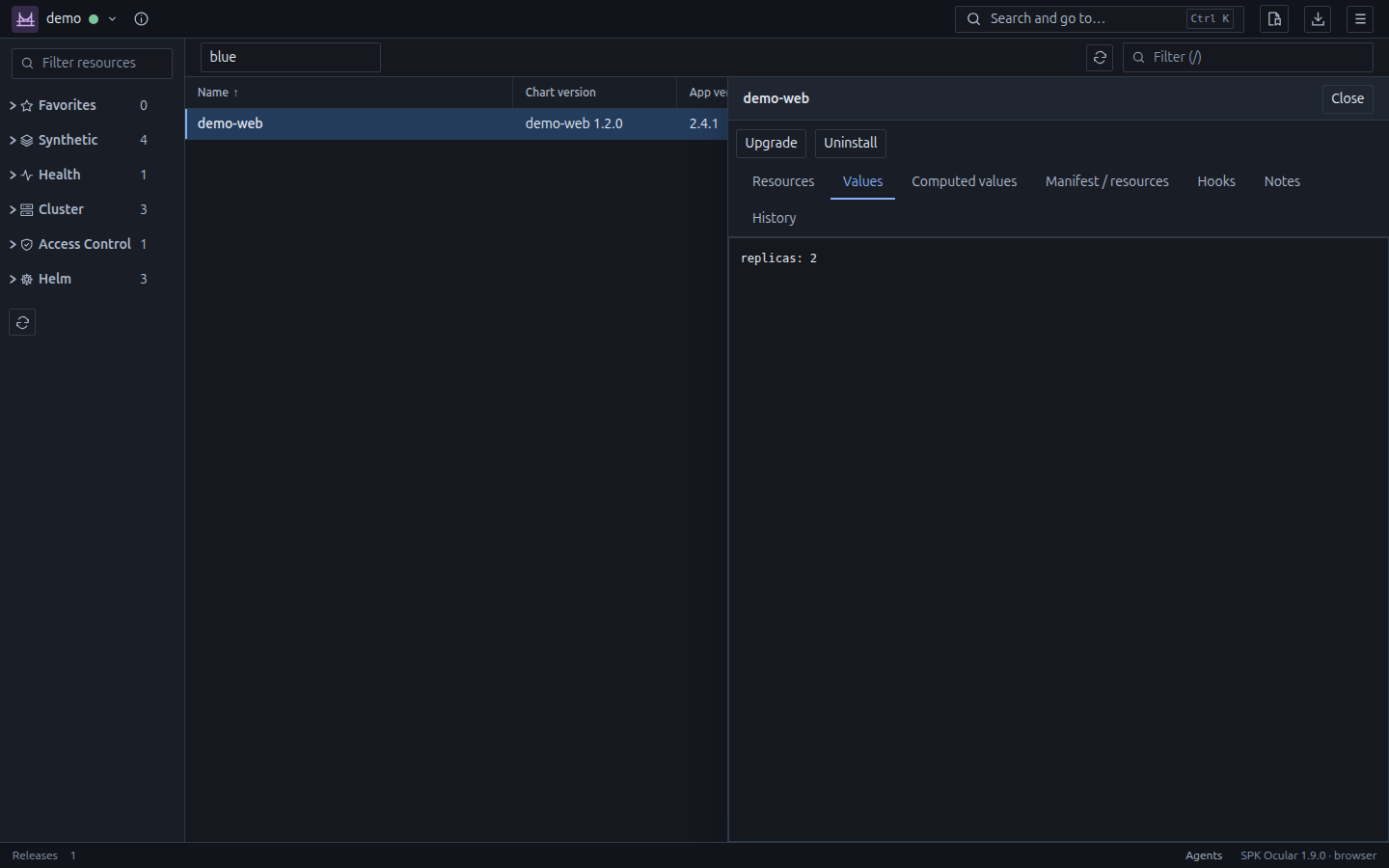
Browse charts, choose a version and edit values. Review an upgrade before you run it, inspect release history or roll back to an earlier revision.
CONTAINER FILES
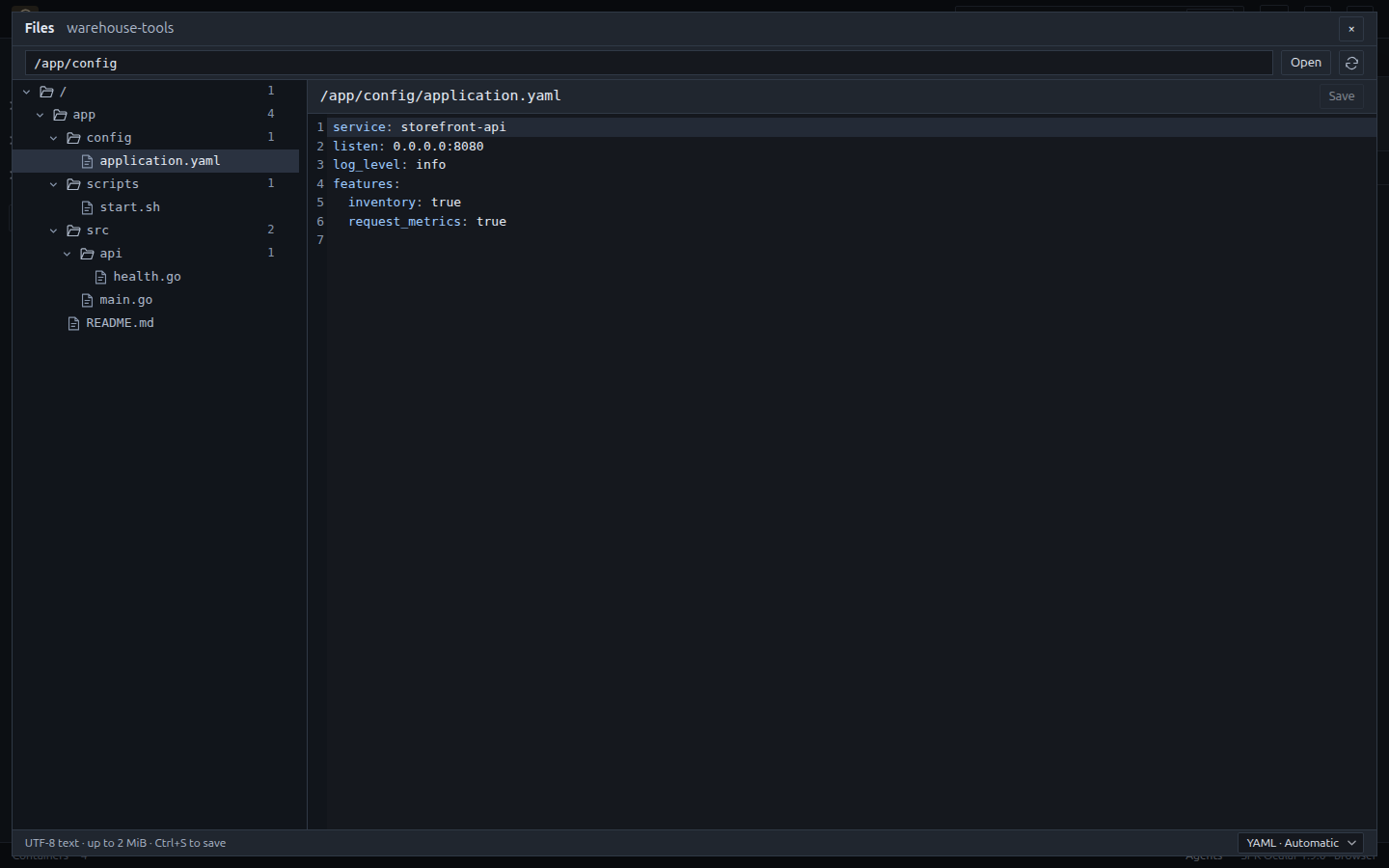
Browse Docker containers and Kubernetes Pods, follow symlink targets and edit configuration files in a cached folder tree. Copy whole files or folders to your computer in the desktop app.
Requires a running Linux container: sh for browsing, readlink for symlinks and tar for downloads. Native file and folder copies are streamed without the editor’s 2 MiB limit; existing destination names are not overwritten. Browser-mode downloads require the desktop app.
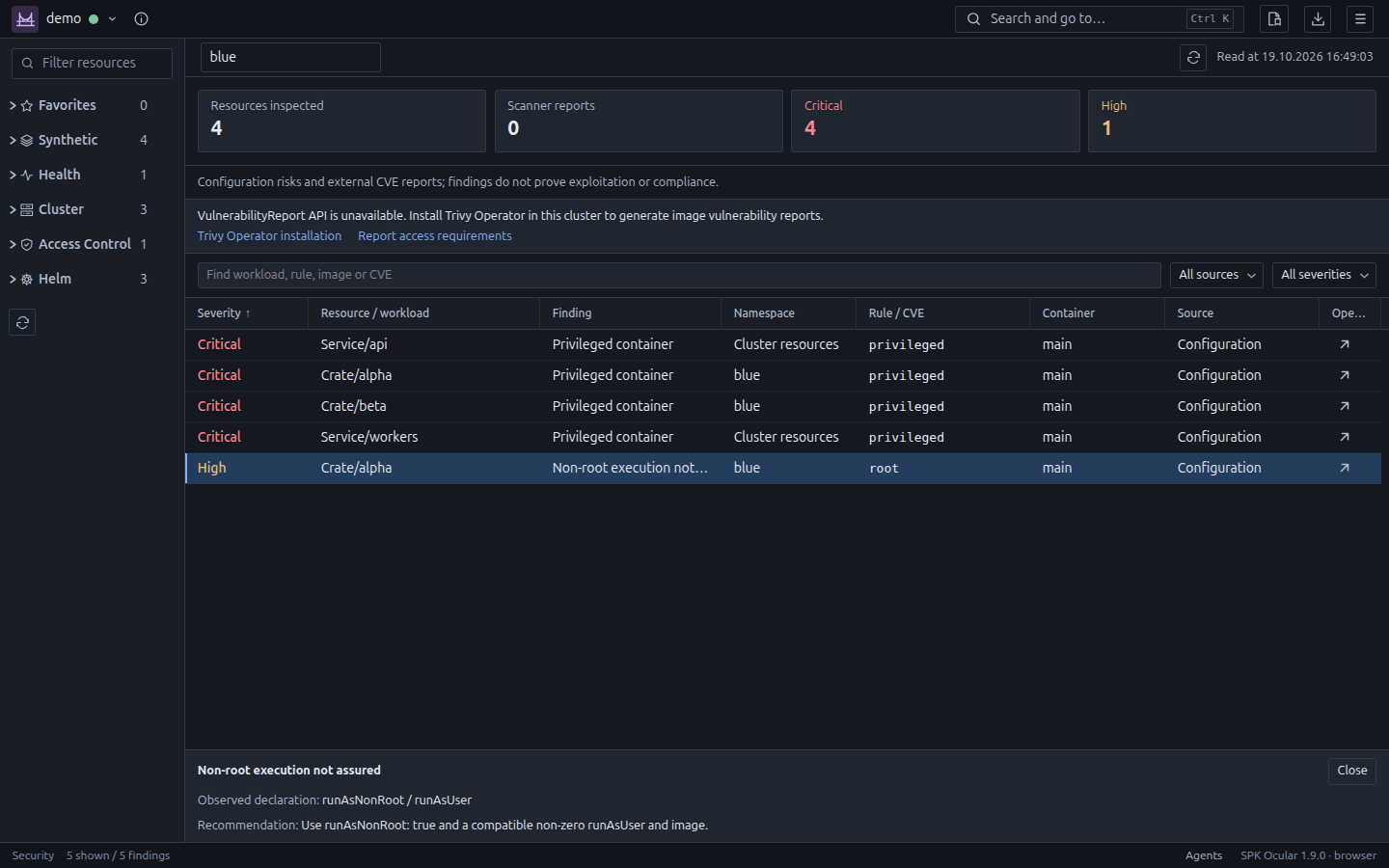
Review Kubernetes workload settings, declared RBAC rules and NetworkPolicy selection. Read existing Trivy Operator vulnerability reports with image, package and available fix details. Ocular does not run scans or install the operator; findings do not prove exploitability or compliance.
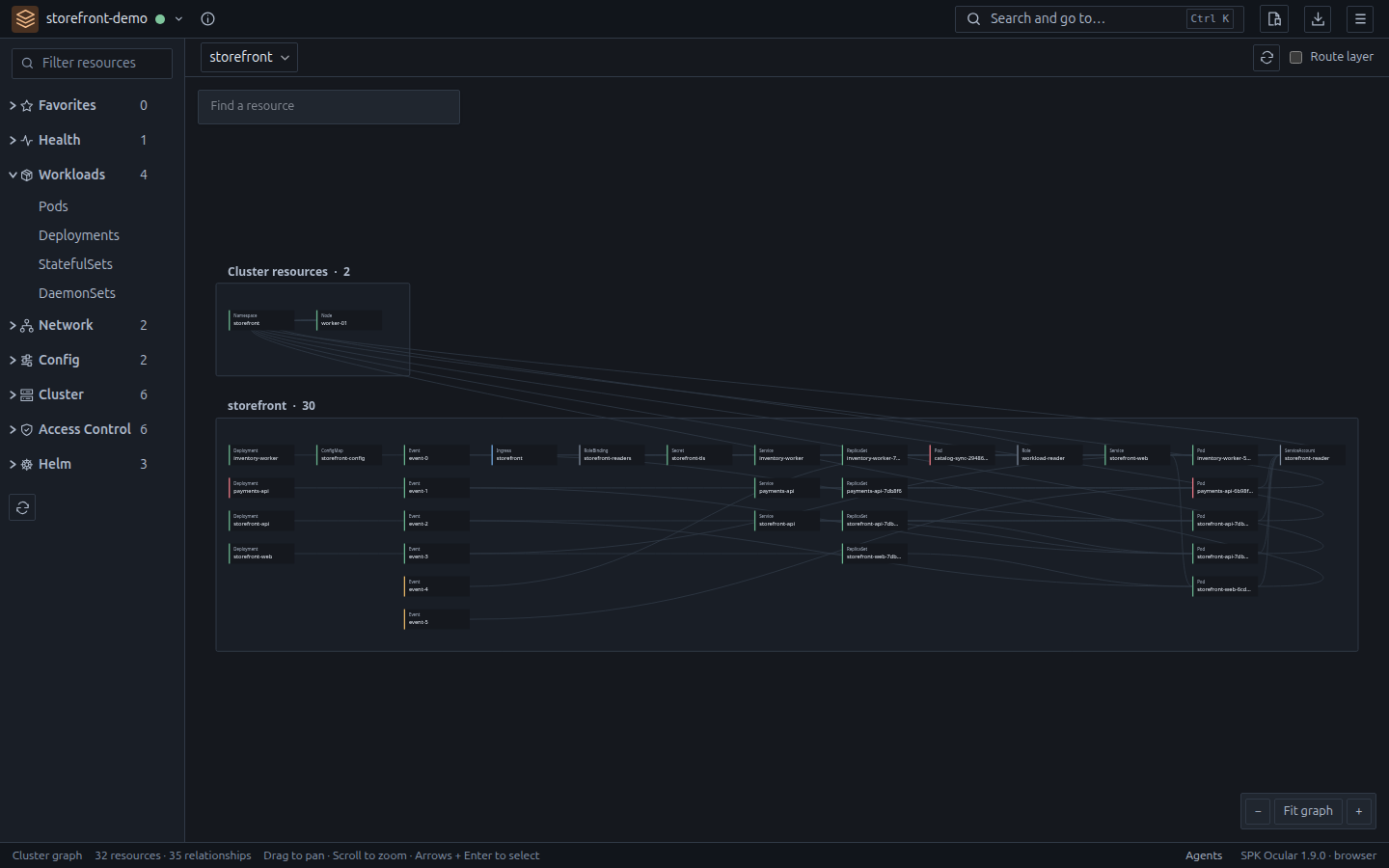
Explore UID-based relationships and declared Service, Ingress and Gateway routes. This is configuration, not measured traffic.
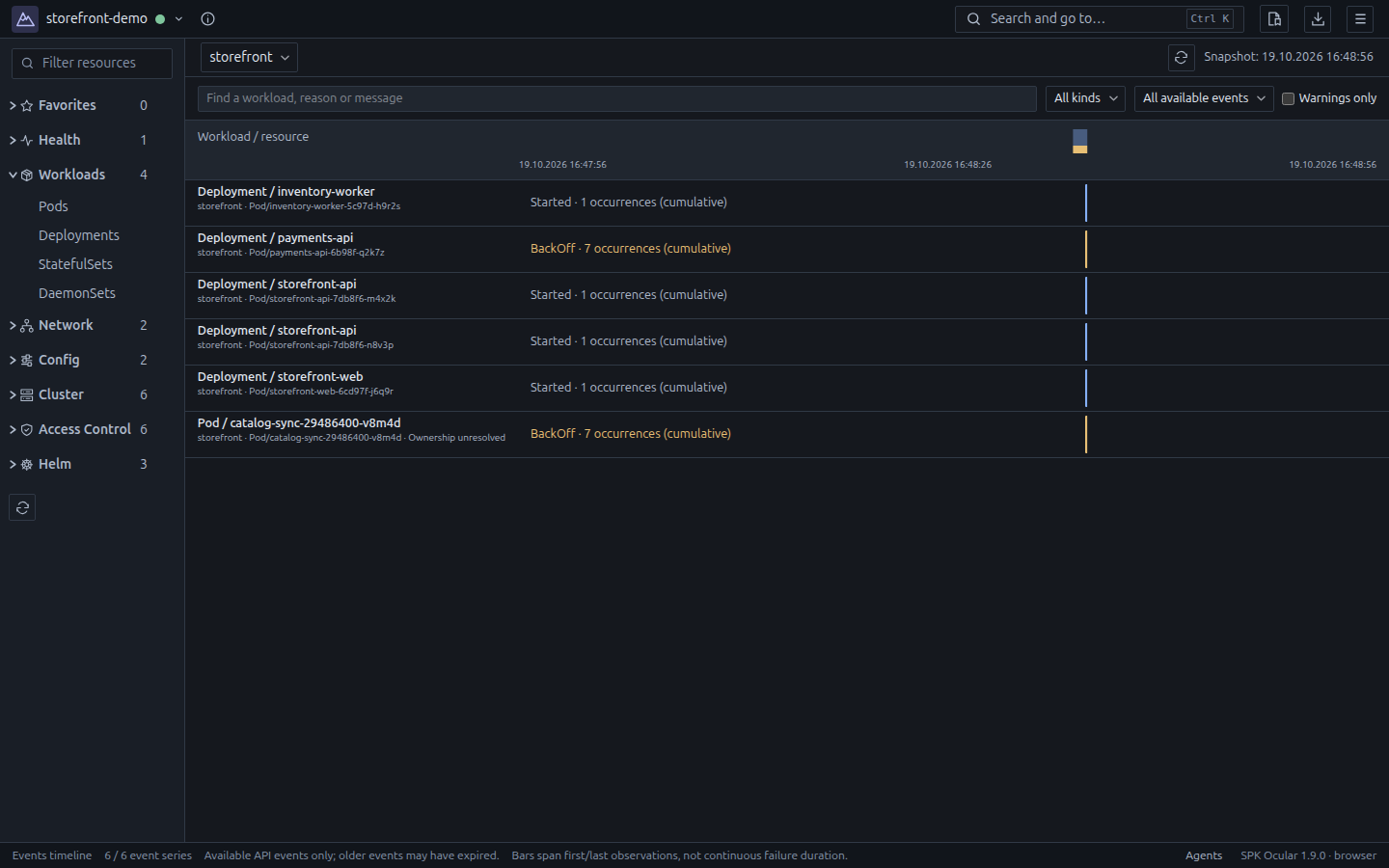
Inspect bounded Kubernetes Events snapshots grouped by workload ownership. Refresh explicitly; retention and incomplete coverage stay visible. This is not an audit history.
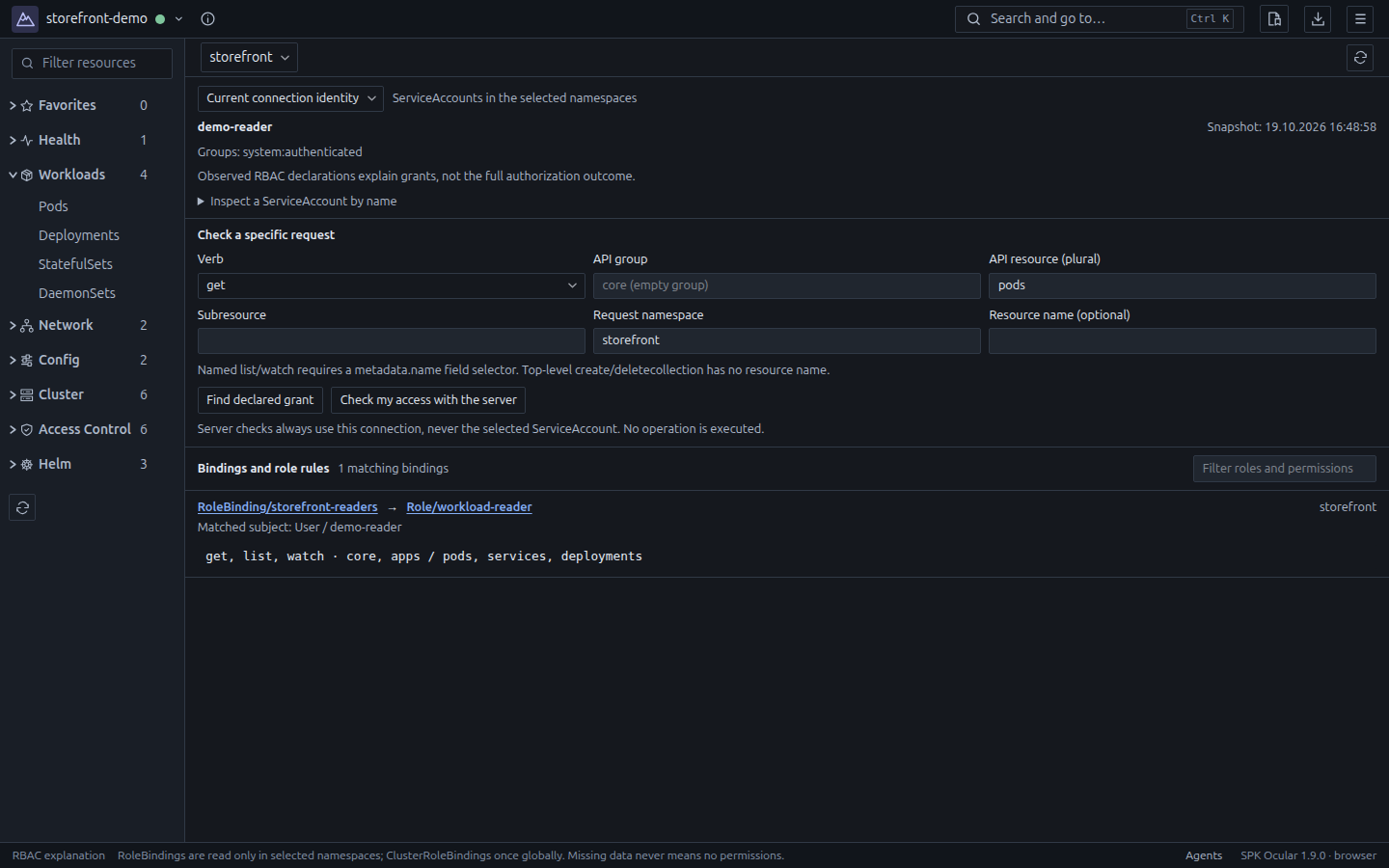
Trace ServiceAccount bindings and role rules. Check requests as the current connection with the server; declarations and self-access decisions stay separate.
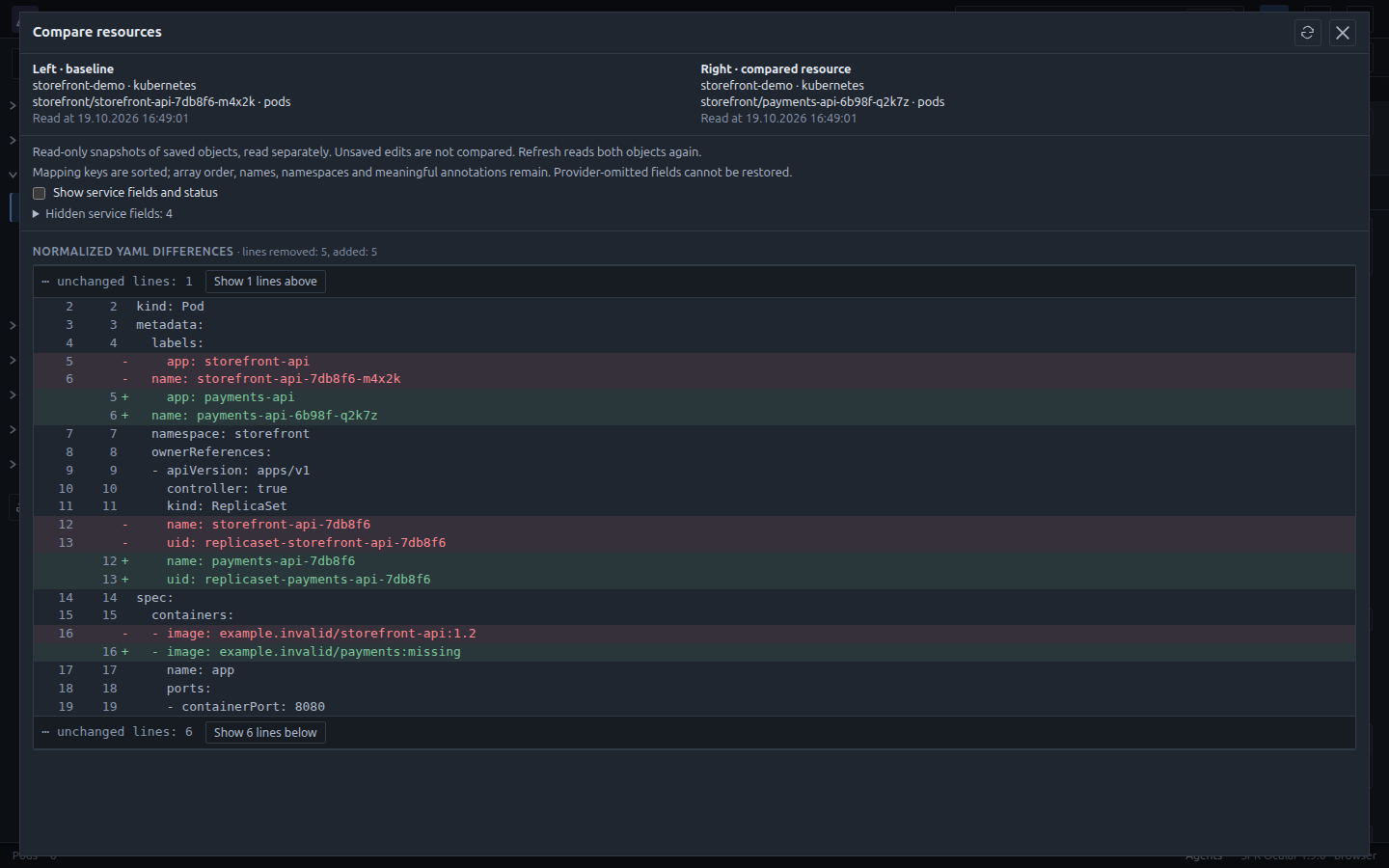
Pair resources on connected targets and compare normalized read-only YAML. Secret payloads and unsaved drafts are excluded; service fields are optional.
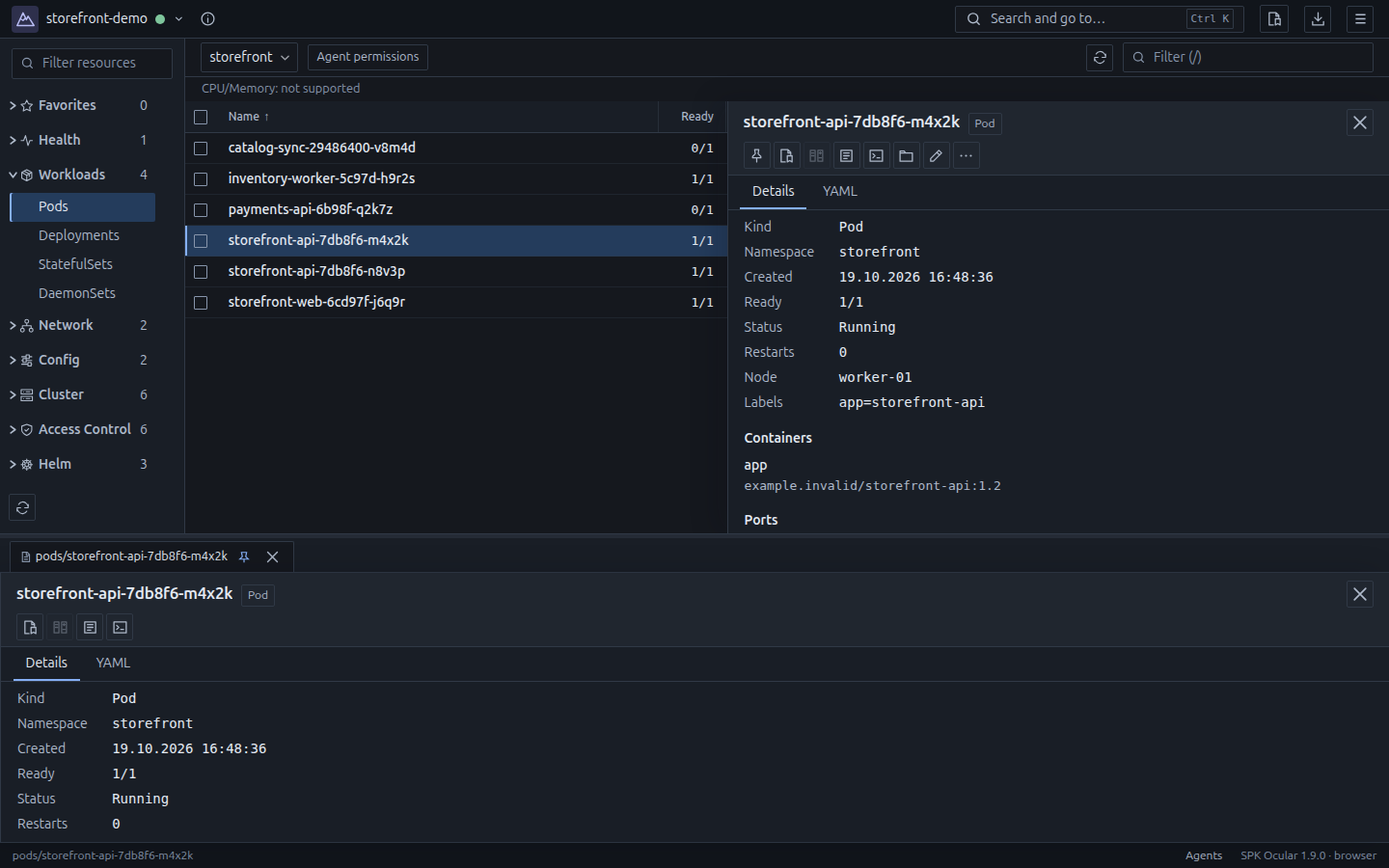
Pin read-only properties and keep log references, ended terminal slots and panel sizes across restarts. Connect and resume explicitly; no contents or commands are saved or replayed.
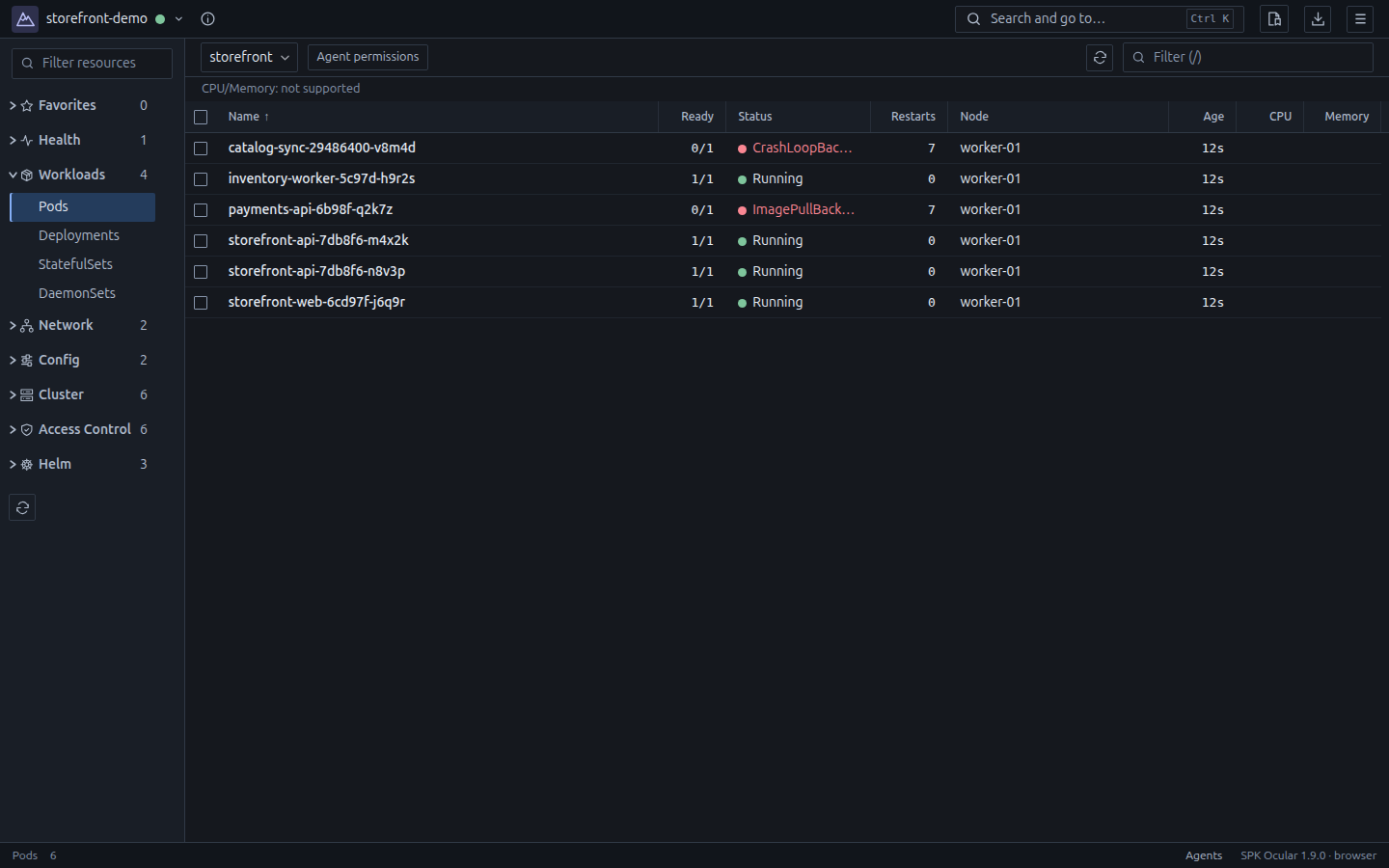
Jump to views, environments and namespaces, or find resources by type and name, such as dep model, within your selected namespaces. Use Command+K on macOS.
Pods, deployments, services and custom resources, with details and relationships.
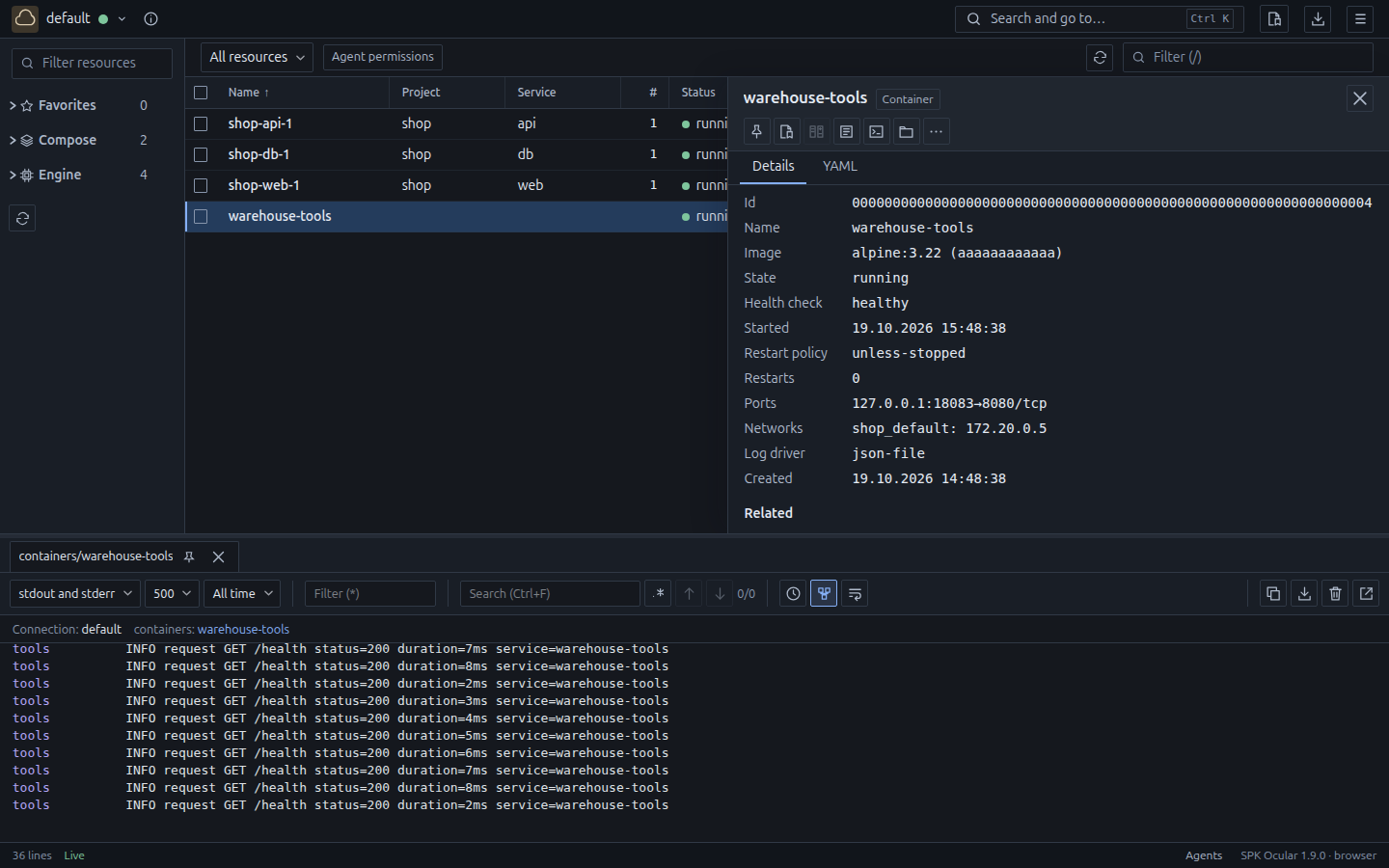
Inspect standalone containers alongside Compose projects and services. Follow logs, open a terminal and review container actions.
Inspect a change before applying it. Existing infrastructure permissions still apply.
Keep namespace selections, filters, favorites and column widths between visits.
YOUR AGENTS. YOUR RULES.
Let local coding agents inspect the environment through Ocular. Choose the namespaces, resource kinds and operations they can use, and review actions that require your approval.
Choose an environment, namespaces and operations.
Give the agent resource and log context for its investigation.
Approve protected changes, or pause access when the work is done.
Local agents running as your OS user share these permissions. Ocular does not isolate them from other programs on your computer. Standalone Docker containers are currently available in the UI only; project grants do not include them.
Real screens from SPK Ocular 1.9.0. Demo data, not product mockups.
LOCAL / OPEN SOURCE
Ocular connects from your computer using your existing kubeconfig and Docker contexts. No central management server or in-cluster Ocular component is required.
Source codeUse your configured credentials and permissions. External authentication helpers specified in kubeconfig must still be installed.
Read the code, report a bug or contribute under Apache 2.0.
NO PAID TIER
Free for individuals, teams and companies of any size. No limits based on revenue or funding. No seats to license and no features to unlock.
Choose your operating system and architecture, then download the desktop installer. All features included.
Linux, Windows & macOS · x86-64 & ARM64
You can also download packages and checksums directly from GitHub Releases, without an account. Development builds are available separately from successful CI runs; they may require a GitHub account and expire.
Linux requires GTK 3 and WebKit2GTK 4.1, including browser mode.
Checks use isolated distribution userspaces sharing a host kernel and X11. They do not certify stock kernels, Wayland or GPU drivers.
Windows: Windows 10/11 with WebView2. macOS: version 12 or newer, Intel or Apple Silicon.
Windows installers are unsigned; macOS builds are ad-hoc signed, not notarized. Check the download source and the package’s SHA-256 checksum before installation.
Yes. There are no revenue or funding limits, subscriptions or trial expiry. Every feature is included; donating is optional.
No Ocular server or cluster component is required. The app uses your existing Kubernetes access. Some capabilities depend on services in your cluster, such as metrics-server for resource metrics.
No. Ocular works with existing Docker engines, standalone containers and Compose projects. It does not provide a container engine or a virtual machine.
No. Ocular uses the embedded Helm SDK to browse charts and manage releases. A separate Helm CLI is unnecessary. Kubernetes permissions and access to the chart repository are still required.
Yes, through the local agent API. You grant access to selected environments, scopes and operations. Protected writes require review. Agents running as your OS user share these permissions. You can pause their access at any time.